Every keypress is ignored
Letters, numbers, modifiers and shortcuts all stop reaching your apps while the lock is on. Nothing you wipe ends up in a document, a chat box or the Terminal.

Keyboard Lock · Part of Recento Pro
Wipe the keys without typing a single character. Keyboard Lock ignores every keypress until you click Unlock, and it is free in Recento Pro.
macOS 14 or later · Apple Silicon & Intel
Cleaning a Mac keyboard while the Mac is on is a mess. Every wipe types letters into whatever is open, a stray press sends a half-written message, and brushing the top row turns the volume up and the screen dark. Shutting down just to clean the keys is slow, and you lose your place. What you want is to lock the Mac keyboard to clean it, then carry on.
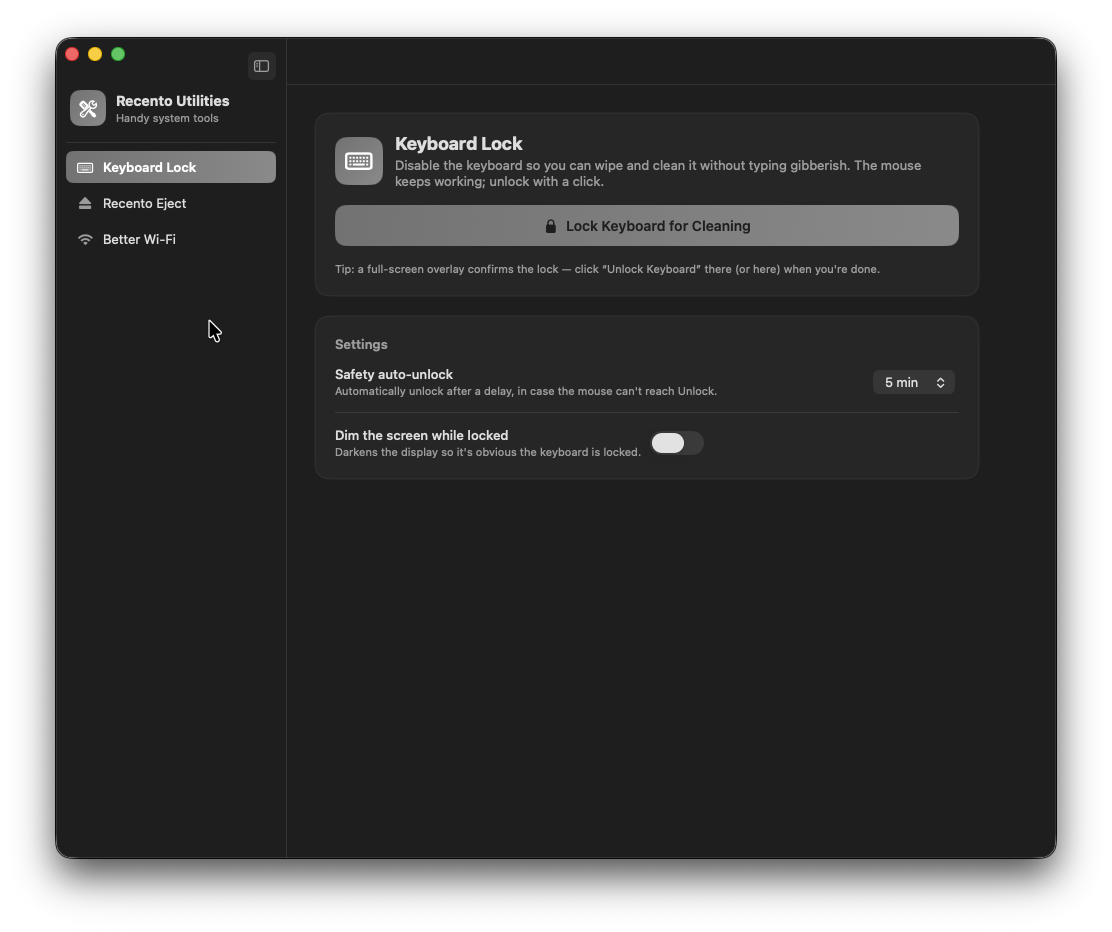
Keyboard Lock lets you lock the Mac keyboard to clean it in one click. Every key is ignored, including volume, brightness and play keys, while a clear full-screen sign tells you the lock is on. The pointer keeps working, so one click on Unlock gives you the keyboard back. It is one of the tools in Recento Utilities, part of Recento Pro.
Letters, numbers, modifiers and shortcuts all stop reaching your apps while the lock is on. Nothing you wipe ends up in a document, a chat box or the Terminal.
Volume, brightness, mute and play keys are system keys, not ordinary key presses, and Keyboard Lock catches them as well. Wiping the top row will not blast the speakers or darken the screen.
A full-screen overlay reads "Keyboard Locked for Cleaning", so there is never any doubt about whether the keyboard is live. It can dim the display so the locked state is obvious from across the desk.
The mouse and trackpad keep working while the keys are locked. Click Unlock Keyboard on the overlay, or on the Keyboard Lock page, and you are back to typing.
A safety auto-unlock gives the keyboard back on its own after 30 seconds, 1, 2 or 5 minutes, so you are never stuck if the pointer cannot reach Unlock. It is set to 2 minutes out of the box, and you can turn it off.
Keyboard Lock is included in the free version and in Recento Pro alike. There is nothing to unlock and no time limit on how often you use it.
| Feature | Free version | Recento Pro |
|---|---|---|
| Lock keyboard & trackpad | Included | Included |
Recento Pro costs $9.99 a month after a 2 day free trial (cancel any time) or $99 one time. Keyboard Lock is free either way.
Plans, trial and refund terms are on the Recento Pro pricing section.
Open Recento Utilities in Recento Pro, choose Keyboard Lock and click Lock Keyboard for Cleaning. A full-screen sign confirms the lock. Click Unlock Keyboard when you have finished wiping.
Yes. macOS sends media and function keys separately from ordinary key presses, and Keyboard Lock blocks both. Wiping the top row will not change the volume or the brightness.
The pointer keeps working while the keys are locked, so click Unlock Keyboard on the overlay. If the pointer cannot reach it, the safety auto-unlock gives the keyboard back after the time you set, 2 minutes by default.
macOS only lets an app hold back keystrokes if you allow it under Accessibility. Recento uses that permission to discard keys while the lock is on and does nothing with them.
After an update, macOS can keep an old Accessibility entry that no longer matches the app. In System Settings, Accessibility, turn Recento Pro off and on again (or remove it and add it back), relaunch Recento Pro and lock again. The app tells you this when it happens.
Yes. The lock applies to keyboard input on the Mac, not to one particular keyboard, so built-in and external keyboards are both ignored while it is on.
Yes. Keyboard Lock is included in the free version of Recento Pro with every feature. The paid version adds limits and features to other apps in Recento Pro, not to this one.
Download Recento Pro, lock the keys and wipe away.


