Auto Eject icon: an eject symbol on a rounded tile

Auto Eject · Part of Recento Pro

Auto eject DMG installers the moment your app is installed

Auto Eject installs a downloaded app, ejects its disk image and clears the clutter from your desktop. It also keeps the drives you rely on from being ejected by accident.

macOS 14 or later · Apple Silicon & Intel

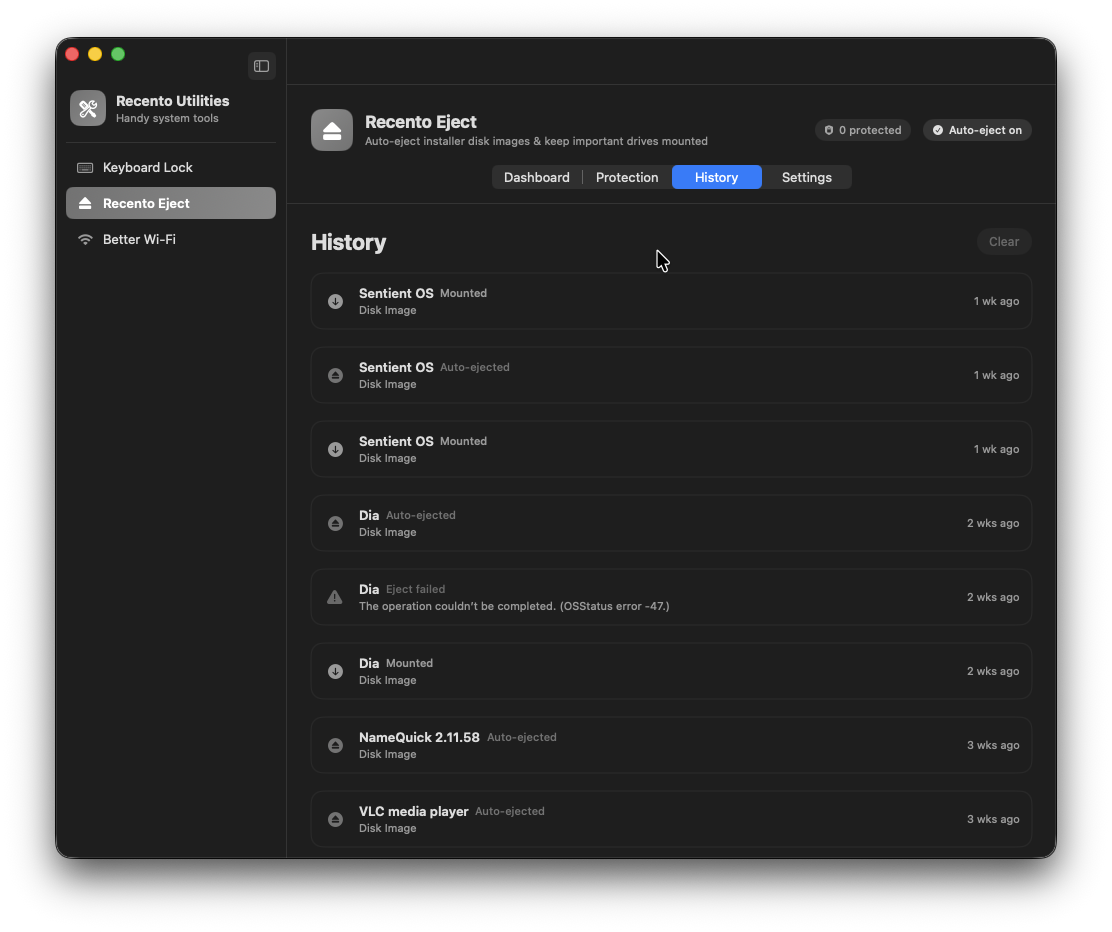
Auto Eject in the Recento Pro app

Installing a Mac app from the web leaves a trail. The disk image mounts, you drag the app across, and then the installer sits on your desktop and in Finder's sidebar until you remember to eject it. A week later there are four of them. Meanwhile the external drive you actually need gets ejected by sleep, a stray key or another app halfway through a backup. What you want is to auto eject DMG installers on your Mac and leave everything else alone.

Auto Eject fixes both ends. It can auto eject DMG installers on your Mac as soon as the app inside is in Applications, and it can offer to do the install for you, then eject the image. For the drives that should stay put, Keep Mounted blocks ejects so they stay available. Auto Eject is one of the tools in Recento Utilities, part of Recento Pro.

What Auto Eject does

Installers eject once the app is installed

In the default mode, Auto Eject waits until the app inside a disk image has been copied to Applications, then ejects the image. It also catches installers that were already mounted before Recento started, so yesterday's leftovers get cleaned up too.

Install a downloaded app in one click

Turn on Install Downloaded Apps and Recento asks once when a disk image finishes downloading, naming the browser it came from. Accept, and it copies the app to Applications and ejects the image. Leave the question unanswered and nothing happens.

Safety checks before anything is copied

macOS's own security check (Gatekeeper) has to accept the app before it is copied, and the app keeps its "downloaded from the internet" mark, so macOS still asks you before the first launch. Installer packages are never run for you, and an image that shows a licence agreement is left for you to open yourself.

Updates replace the old version safely

When you install a newer version of an app you already have, the old copy goes to the Trash, not straight into oblivion. If the app is running, Recento asks you to quit it first instead of replacing it underneath you.

Choose when to eject

Pick one of four modes: When App Installed, After a Delay (2 seconds to 5 minutes), Immediately on Mount, or Manual Only. Every automatic mode waits for the app inside to be installed first.

Your data disk images stay mounted

With Only installers on, a disk image with no app inside is left alone so you can keep working from it. Any image you never want ejected can go on a never-eject list.

Keep important drives mounted

Keep Mounted blocks ejects for the drives you list, so sleep, a stray key or another app cannot pull them out from under you. Drives are remembered across unplugging and reconnecting.

Everything mounted, in one place

See every mounted disk image and external drive with its size and what will happen to it. Eject one, show it in Finder, or eject all disk images at once, and read a history of every eject.

How it works

  1. 1Download Recento Pro and open Recento Utilities from the Hub, the app grid.
  2. 2Choose Auto Eject in the sidebar and make sure it is switched on.
  3. 3Pick when installers should eject. When App Installed is the default.
  4. 4Optional: turn on Install Downloaded Apps and allow access to your Downloads folder when macOS asks.
  5. 5Optional: under Keep Mounted, turn on Block ejects and add the drives that must stay mounted.
  6. 6Download an app as usual. Recento installs or waits, then ejects the disk image.

Who it's for

  • People who try a lot of apps: no more pile of mounted installers on the desktop.
  • Developers and IT staff: set up a new Mac and let every installer tidy itself away.
  • Photographers and video editors: keep the working drive mounted through sleep and long imports.
  • Anyone running backups to an external drive: stop a stray eject from interrupting a backup.
  • Less technical Mac users: accept one question instead of learning the drag-to-Applications ritual.

Free and paid

FeatureFree versionRecento Pro
Auto-eject & install downloaded appsIncludedIncluded
Drives kept mounted1Unlimited
Activity historyLast 20Full, by date

Recento Pro costs $9.99 a month after a 2 day free trial (cancel any time) or $99 one time and unlocks every drive and the full history.

Plans, trial and refund terms are on the Recento Pro pricing section.

Privacy and permissions

  • Downloads folder: Install Downloaded Apps watches your Downloads folder (or another folder you choose), so macOS asks you to allow access. It only looks for finished disk images.
  • Notifications (optional): used to tell you when a disk image is ejected or an eject is blocked.
  • No administrator password: apps are copied to Applications without one for administrator accounts. On a standard account they go to your own Applications folder instead of asking for a password.
  • Nothing leaves the Mac. Auto Eject reads the disk images and drives on your Mac and the download source macOS already recorded on the file. It sends nothing anywhere.

Requirements

  • macOS 14 Sonoma or later.
  • Any Mac: Apple silicon or Intel.
  • Install Downloaded Apps works with disk images that hold exactly one app.

Questions

How do I automatically eject a DMG after installing an app on Mac?

Turn on Auto Eject in Recento Utilities and leave the mode on When App Installed. Once the app inside the disk image is in Applications, the image is ejected for you. It also handles installers that were mounted before Recento started.

Will it eject disk images I am still using?

Not if they are data images. With Only installers on (the default), a disk image without an app inside stays mounted. You can also add any image to the never-eject list.

Can Recento install the app for me?

Yes. Turn on Install Downloaded Apps and Recento asks once when a disk image finishes downloading. Accept and it copies the app to Applications, then ejects the image. It is off until you switch it on.

Is it safe to let Recento install downloaded apps?

Recento never installs without asking. macOS's Gatekeeper check must accept the app first, the app keeps its downloaded-from-the-internet mark so macOS still checks it at first launch, and installer packages are never run for you. Anything it refuses, it hands back with a button to open the disk image yourself.

Which installers can it not install?

Disk images with more than one app, installer packages (.pkg), images that show a licence agreement, and apps that are currently running. In each case Recento says why and leaves the install to you.

Can it stop my external drive ejecting on sleep?

Turn on Block ejects under Keep Mounted and add the drive. Recento then refuses eject requests for it, whether they come from sleep, a key or another app. Pulling the cable out is something no app can stop.

How many drives can I keep mounted for free?

The free version keeps one drive mounted. Recento Pro keeps as many as you like and shows the full eject history by date.

Does it need my administrator password?

No. On an administrator account apps go to Applications without a password. On a standard account they go to the Applications folder in your home folder.

Let installers clean up after themselves

Download Recento Pro and never eject another installer by hand.