
Recento Drop icon, a full tray

Recento Drop · Part of Recento Pro

A floating drag and drop shelf for Mac

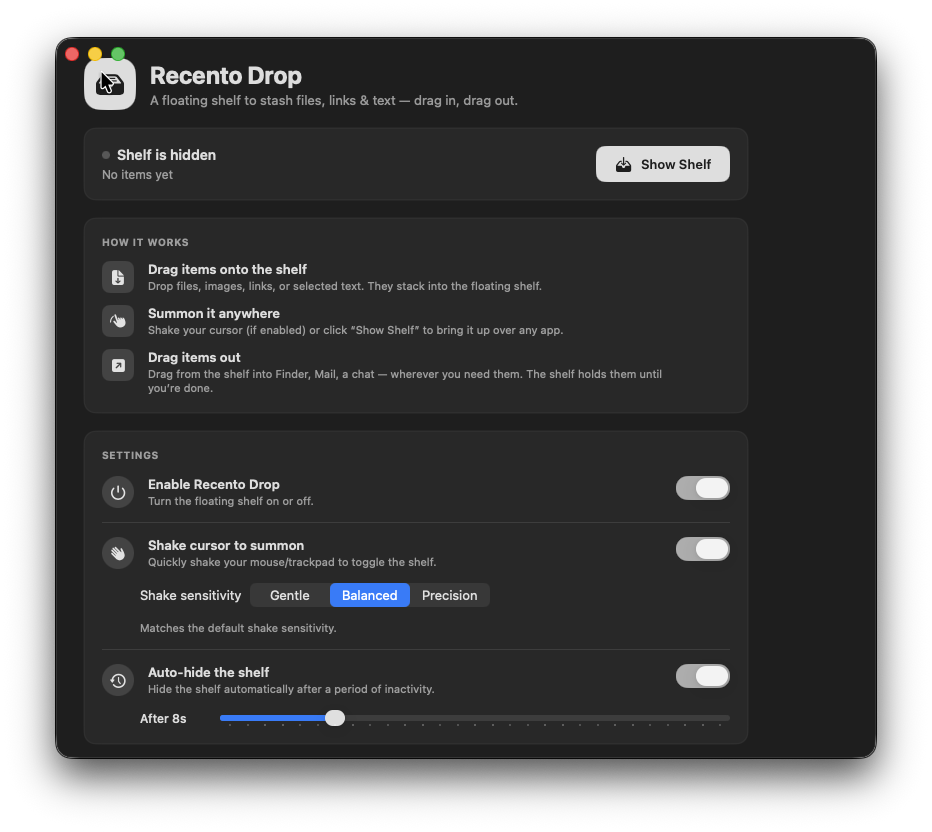
Shake your cursor mid-drag or press ⌥⌘D and a shelf appears. Stash files, links and text from anywhere, then drag them out together when you get where you are going. Recento Drop is part of Recento Pro.

macOS 14 or later · Apple Silicon & Intel

Recento Drop in the Recento Pro app

Dragging on a Mac works well until the place you are dragging to is buried under three windows, on another Space or in an app that is not open yet. Then you let go somewhere you did not mean to, or give up and copy files the long way round.

Recento Drop gives you a drag and drop shelf for Mac that floats above everything. Shake the cursor while dragging and a shelf appears under it. Drop files, links, images and text on it, gather more from other folders and apps, then drag the whole stack out at once. You can also resize, convert, zip or share what is on the shelf without opening another app.

What Recento Drop does

01

Summon a shelf mid-drag

Shake the cursor while you are dragging and a shelf appears right where you are. Press ⌥⌘D to bring one up from the keyboard at any time. Choose whether a summon brings a fresh empty shelf, the last shelf you used or every open shelf.

02

Drop anything on it

Files, folders, images, links and text all go on the shelf. An image dragged off a web page is saved as a real image file, and files from temporary locations are copied so they cannot disappear from under you.

03

Drag it all out in one go

Drag the whole stack into Finder, an email, a chat or an upload form. Text becomes a real text file and links become web location files, so even a mixed stack lands as files. You can choose to clear items from the shelf once they have been dragged out.

04

Several shelves, named and pinned

Keep a shelf per project. Rename them, show several at once, and pin the ones that should stay on screen and come back after a restart. Shelves arrange themselves so they do not land on top of each other.

05

Dock a shelf to the edge of the screen

Tuck a shelf against any edge as a small tab and pull it back out when you need it. Shelves snap neatly to screen edges when you drop them nearby, and an idle shelf can retract to the edge by itself.

06

Image and file actions built in

Resize, convert to PNG, JPEG, HEIC or TIFF, compress, remove metadata, create a thumbnail, stitch images together, extract text, or turn images into a PDF, right on the shelf. Results appear as new items, ready to drag out.

07

Zip, save, share or AirDrop the shelf

Zip everything on a shelf (or zip straight to the Desktop), save it all to a folder, copy it all, or share it through the macOS share sheet, which includes AirDrop. You can also run your own script on the files.

08

A new shelf for every screenshot

Folder Watching keeps an eye on a folder, such as your screenshots folder, and puts each new file on a shelf of its own in the corner of the screen. Drag the screenshot out and the shelf tidies itself away.

09

Share a link from your own storage

Cloud Sharing uploads a shelf item to your own S3-compatible storage bucket, or an anonymous image host, and gives you a link back. Uploads go straight from your Mac to your storage. There is no Recento account and nothing passes through us.

10

Shelves stay put when you quit

Everything on your shelves is kept between launches. A menu bar icon lists your recent shelves so you can open one in a click.

How it works

  1. 1Download Recento Pro and turn on Recento Drop in the Hub.
  2. 2Start dragging a file, then shake the cursor (or press ⌥⌘D). A shelf appears.
  3. 3Drop the file on the shelf. Go and collect more from other folders, apps and web pages.
  4. 4Use the shelf's actions to resize, convert or zip if you need to.
  5. 5Drag everything out to where it needs to go, all at once.

Who it's for

  • Designers and marketers who gather images from many places and need to resize or convert them before uploading.
  • Developers and writers who collect files, links and snippets for a pull request, a ticket or an email.
  • People who take a lot of screenshots and want each one waiting on a shelf, ready to drag into a chat.
  • Anyone who works across Spaces and full-screen apps where dragging from one window to another is awkward.
  • Trackpad users who would rather not hold a drag across the whole screen.

Free and paid

FeatureFree versionRecento Pro
Floating shelf & shake to summonIncludedIncluded
Image & file actionsIncludedIncluded
Shelves1Unlimited
Items on a shelfUp to 10Unlimited
Folder watchingNot includedIncluded
Cloud sharing linksNot includedIncluded

Recento Pro unlocks the paid features in every module for $9.99 a month after a 2 day free trial (cancel any time) or $99 once for a lifetime licence.

Plans, trial and refund terms are on the Recento Pro pricing section.

Privacy and permissions

  • Accessibility: needed for the shake gesture to work while you are dragging, because macOS hides cursor movement from other apps during a drag. Without it, the ⌥⌘D shortcut and the menu bar icon still summon a shelf, and the shelf works normally.
  • Folder access: macOS asks the first time Folder Watching reads a protected folder such as Desktop, Documents or Downloads.

Shelves and their contents are stored on your Mac. Files dragged in from temporary locations are copied into Recento Drop's own folder so they are not lost, and those copies are removed when you remove the item. Nothing is uploaded unless you use Cloud Sharing with a destination you set up yourself. Your storage keys are kept in the macOS keychain.

Requirements

  • macOS 14 Sonoma or later.
  • Apple silicon and Intel Macs.
  • Cloud Sharing needs your own S3-compatible storage bucket, or a free client ID from the anonymous image host it supports.

Questions

How do I open a floating shelf on Mac while dragging?

Start dragging, then shake the cursor quickly from side to side and a Recento Drop shelf appears under it. You can also press ⌥⌘D at any time. Shaking mid-drag needs Accessibility permission. The shortcut does not.

Why doesn't the shake gesture work while I drag?

macOS hides cursor movement from other apps during a drag unless the app has Accessibility permission. Grant it in System Settings and shaking works mid-drag. Until then, ⌥⌘D and the menu bar icon still bring up a shelf.

Can I keep more than one shelf?

Yes. Recento Pro lets you keep as many shelves as you like, each with its own name, and show several at once. The free version has one shelf with up to 10 items.

What happens to my shelves when I quit?

They are kept. Every shelf and its contents come back the next time you open Recento Pro, and pinned shelves reappear on screen.

Can I resize or convert images on the shelf?

Yes. Resize, convert to PNG, JPEG, HEIC or TIFF, compress, remove metadata, stitch images together, extract text or create a PDF, all from the shelf. Each result is added to the shelf as a new item.

Can Recento Drop show each new screenshot on a shelf?

Yes, with Folder Watching in Recento Pro. Point it at the folder your screenshots are saved to and each new screenshot opens on its own shelf, which tidies itself away once you drag the screenshot out.

Does Cloud Sharing need an account?

Not a Recento account. Cloud Sharing uploads to storage you set up yourself, either an S3-compatible bucket or an anonymous image host, so there is nothing to sign up for with us. Anything sent to the image host is public to anyone with the link.

Can I AirDrop everything on a shelf?

Yes. The shelf's Share button opens the macOS share sheet, which includes AirDrop, Mail and Messages.

Stop losing files halfway through a drag

Download Recento Pro, shake your cursor and give every drag somewhere to land.