Recento Snap icon, a camera viewfinder

Recento Snap · Part of Recento Pro

The screenshot tool for Mac that makes every capture ready to send

Take a screenshot, mark it up, hide what should stay private and give it a clean background, all in one window. Recento Snap is part of Recento Pro.

macOS 14 or later · Apple Silicon & Intel

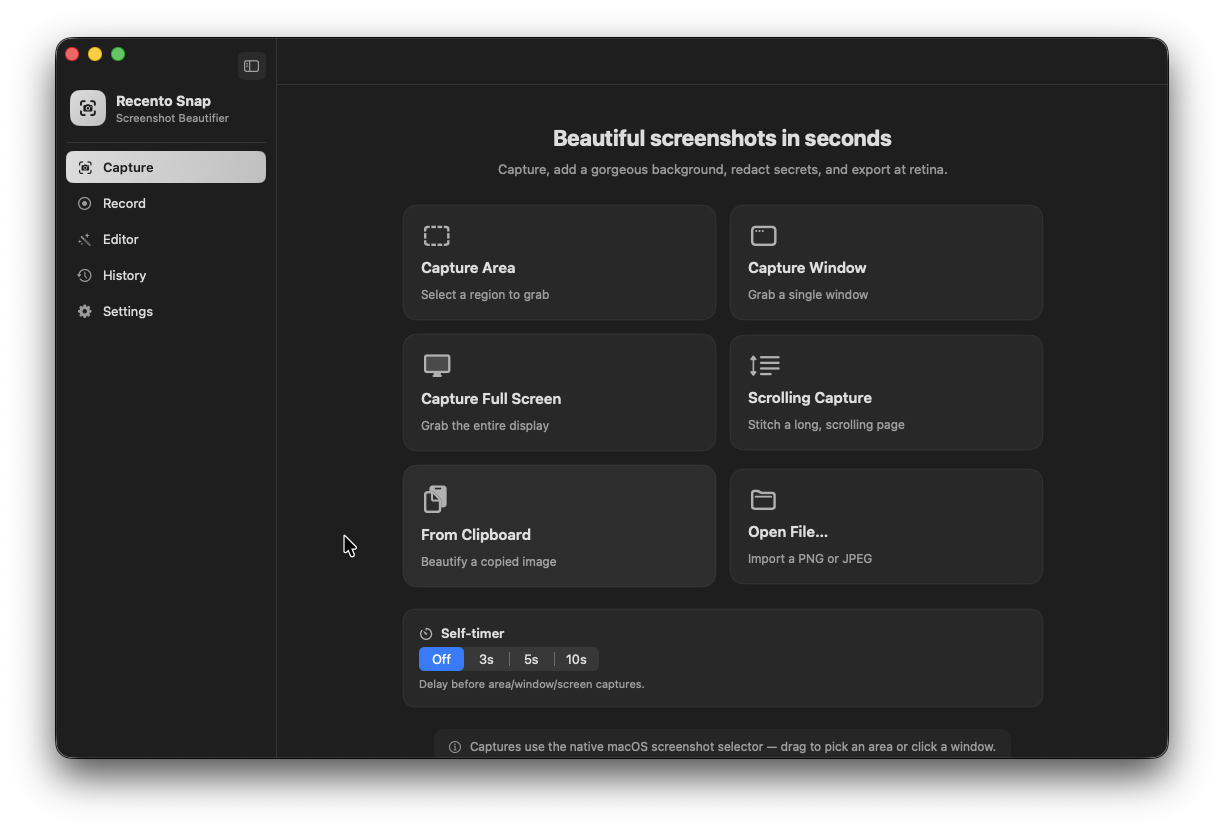
Recento Snap in the Recento Pro app

A raw screenshot is rarely ready to share. It has an email address in the corner, a notification on top, desktop icons behind it and nothing pointing at the part that matters. Fixing that usually means a second app, and then a third to record a short clip.

Recento Snap is a screenshot tool for Mac that does the whole job in one place. Capture an area, a window or the full screen, then add arrows, text and numbered steps, blur or pixelate private details, and set the shot on a background with padding, rounded corners and a soft shadow. When a still is not enough, record the screen as a video or a GIF.

What Recento Snap does

01

Capture exactly what you want

Capture a dragged area, a single window or the whole display. The area selector stays on screen after you let go, so you can move it, resize it from its corners or nudge it a pixel at a time with the arrow keys before you press Return. Quick Capture Area takes the shot the moment you release the mouse.

02

Type an exact size

Click the pencil on the size readout and type the width and height in pixels. The selection resizes to match, and the editor's crop takes a typed pixel size too, so a shot meant for a 1280 by 720 slot comes out exactly that size.

03

Annotate in seconds

Add arrows (straight or curved), lines, rectangles, ovals, text, highlights, freehand pencil, numbered step badges, a magnifier loupe and a ruler that measures in pixels. Drag either end of an arrow to point it somewhere else. Your annotations are saved with the capture, so you can reopen it later and keep editing.

04

Hide private details for you

Recento Snap reads the text in a screenshot and finds email addresses, IP addresses, card-like numbers and API keys so you can cover them with blur, pixelation or a solid block. You can also draw redactions by hand. A spotlight dims everything except the part you want people to look at.

05

Backgrounds that look finished

Set a screenshot on a solid colour, a gradient or a background picked automatically from the image itself. Adjust padding, rounded corners and shadow, choose an aspect ratio, and export at Retina resolution.

06

Copy the text out of any screenshot

Text recognition runs on your Mac, so you can copy the words out of an image, an error dialog or a video frame without retyping them.

07

Scrolling capture of a whole page

Select the part of the window that scrolls and Recento Snap scrolls it for you, capturing as it goes and stitching the frames into one tall image. Useful for long web pages, chats and documents.

08

Record the screen as a video or a GIF

Record an area, a window or the full screen as an MP4 video at 30 or 60 frames per second, with or without the cursor, after an optional countdown. Turn a clip into an animated GIF for places that will not play video.

09

Quick Access, pin to screen and history

After each capture a small preview appears in the corner: drag it straight into a message, or copy, save, edit or pin it. A pinned screenshot floats above every window as a reference you can resize and fade. Every capture is kept in a history you can filter by screenshots, recordings and GIFs.

10

Clean captures, every time

Desktop icons are covered during a capture and notifications are kept out of the shot. A self-timer of 3, 5 or 10 seconds gives you time to open a menu before the shot is taken.

How it works

  1. 1Press ⌘⇧7 (or choose a capture from Recento Snap) and drag over the part of the screen you want.
  2. 2Adjust the selection, or type an exact size, then press Return.
  3. 3Drag the preview straight into an app, or open it in the editor.
  4. 4Add arrows, text, steps and redactions, and pick a background.
  5. 5Copy, save or pin the result. It stays in your capture history with its edits.

Who it's for

  • Developers and QA testers who file bug reports with annotated screenshots and short screen recordings.
  • Support teams who send customers step-by-step screenshots with numbered badges and private details blurred.
  • Designers and writers who need polished screenshots with backgrounds for docs, slides and social posts.
  • Product managers and founders who share feature updates and need a GIF or a scrolling capture of a whole page.
  • Anyone sharing their screen who wants email addresses and account numbers hidden before an image leaves the Mac.

Free and paid

FeatureFree versionRecento Pro
Screenshots, editor & annotationsIncludedIncluded
Backgrounds, redaction & copy textIncludedIncluded
Quick Access & pin to screenIncludedIncluded
Export watermarkYesRemoved
Screen recording & GIFNot includedIncluded
Scrolling captureNot includedIncluded
Capture historyLast 10Last 30 days

Recento Pro unlocks the paid features in every module for $9.99 a month after a 2 day free trial (cancel any time) or $99 once for a lifetime licence.

Plans, trial and refund terms are on the Recento Pro pricing section.

Privacy and permissions

  • Screen Recording: macOS requires it for any app that captures the screen. Recento Snap asks for it the first time you capture.
  • Accessibility: used by scrolling capture to scroll the window for you. Ordinary screenshots do not need it.
  • Microphone: asked only if you choose to record your voice with a screen recording.

Captures, edits and history are stored on your Mac in Recento Snap's own folder. Text recognition and the detection of private details run on your Mac. Recento Snap does not upload your screenshots anywhere.

Requirements

  • macOS 14 Sonoma or later.
  • Apple silicon and Intel Macs.
  • Recording your microphone with a screen recording needs macOS 15 or later.

Questions

What is the best way to take a screenshot on Mac with annotations?

Recento Snap captures and annotates in one step. Press ⌘⇧7, drag over the area, and the capture opens in an editor with arrows, text, numbered steps, highlights, blur and backgrounds. Your edits are saved with the capture, so you can come back to it later.

Does Recento Snap replace the built-in Mac screenshot shortcuts?

No. ⌘⇧3, ⌘⇧4 and ⌘⇧5 keep working as before. Recento Snap uses ⌘⇧7 for area capture and ⌘⇧8 for quick area capture by default, and you can change or add shortcuts for every capture type.

How do I take a scrolling screenshot on Mac?

Choose Scrolling Capture in Recento Snap, select the part of the window that scrolls, and it scrolls and stitches the page for you. Scrolling capture is part of Recento Pro and needs Accessibility permission. Apps that scroll in unusual ways may not stitch perfectly, so check the result before you send it.

Can I record my screen as a GIF?

Yes. Record an area, a window or the full screen as an MP4, then convert it to an animated GIF. Screen recording and GIF export are part of Recento Pro.

Can I record audio with a screen recording?

You can record your microphone on macOS 15 or later. On macOS 14 recordings are video only.

How do I hide personal information in a screenshot?

Recento Snap reads the text in the image, finds details like email addresses and lets you cover them with blur, pixelation or a solid block. You can also draw a redaction over anything by hand.

Is there a watermark on the free version?

Images exported from the free version carry a small "Made with Recento Snap" watermark. Recento Pro removes it.

How long is my capture history kept?

The free version keeps your last 10 captures. Recento Pro keeps every capture for 30 days. Anything you save to a folder of your own stays there until you delete it.

Do I need to give Recento Snap Screen Recording permission?

Yes. macOS requires Screen Recording permission for any app that captures the screen, including screenshot tools. Recento Snap asks the first time you capture and only uses it to take the shots you ask for.

Send screenshots that explain themselves

Download Recento Pro, open Recento Snap and take your first annotated screenshot in seconds.