A dial at your cursor
Press Option-Space and the dial opens where your pointer already is, so there is no trip across the screen. Change the shortcut to anything you like in settings.

Recento Dial · Part of Recento Pro
Recento Dial is a radial app launcher for Mac. Press Option-Space and a dial opens right at your cursor, holding the apps, folders and links you use most, plus your saved workspaces and shelves.
macOS 14 or later · Apple Silicon & Intel
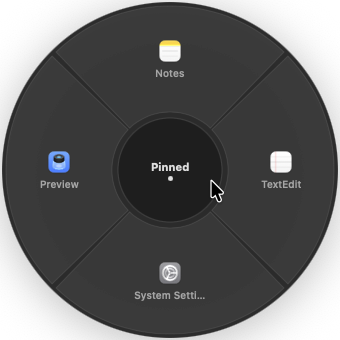
You can only learn so many keyboard shortcuts, and the Dock is always on the far side of the screen. Opening the same handful of apps, folders and sites all day means a lot of small trips you should not have to make.
Recento Dial puts them in a ring around your pointer. Press one shortcut, flick toward what you want, and it opens. It is a radial app launcher for Mac that also reaches the bigger things in Recento Pro: a whole saved workspace, or a Recento Drop shelf.
Press Option-Space and the dial opens where your pointer already is, so there is no trip across the screen. Change the shortcut to anything you like in settings.
Put the things you open every day on the dial: an app, a folder, or a web link. Group extras into a small menu of their own so the top level stays short.
Your saved Recento Workspaces and Recento Drop shelves each get one slice. Click it and the dial swaps to that list, so a whole working setup or a shelf of files is two clicks away.
Tap the shortcut and aim with the mouse, or hold it, flick toward a slice and let go. You can also use the arrow keys, press Return, scroll to turn the dial, or press 1 to 9 and 0 to open a slice outright.
Prefer something you can point at? Keep the dial on screen as a faint icon that brightens when you use it. It opens on a click, or on hover if you choose.
Drag the dial wherever suits you. Drop it near a screen edge and it snaps flush to it, and it remembers where you left it.
Pick a small, medium or large dial, show names on every slice or only on the one you aim at, and add number badges so the keyboard shortcuts are easy to learn. Long names are shortened on the dial and shown in full when you point at them.
Right-click the dial to open or close it, keep it on screen, switch hover opening on or off, or jump to its settings.
| Feature | Free version | Recento Pro |
|---|---|---|
| The dial, shelves & workspaces | Included | Included |
| Pinned items | 4 | Unlimited |
Recento Pro is $9.99 a month after a 2 day free trial (cancel any time) or $99 once for a lifetime licence, and it unlocks every module.
Plans, trial and refund terms are on the Recento Pro pricing section.
It is a ring of choices that opens around your pointer. You point or flick in a direction to pick one, which is faster than travelling to the Dock or menu bar and easier to learn than a long list of shortcuts.
Option-Space. You can change it in Recento Dial's settings, and Recento warns you if the keys you pick are already used by macOS or another Recento action.
Apps, folders and web links, plus small menus that group several of them. Your saved workspaces and Recento Drop shelves appear as their own slices when those modules are on.
Yes. Once the dial is open, use the arrow keys and Return, or press 1 to 9 and 0 to open a slice directly. Keyboard control works best with Accessibility permission allowed.
Yes. Turn on Keep on Screen and it rests as a faint icon wherever you put it, brightening when you use it. A click opens it. Hovering can open it too if you turn that on.
The free version lets you pin 4 items. Recento Pro removes the limit. The dial itself, and the Workspaces and Shelves groups, are free.
No. The dial only takes the mouse while your pointer is over it, so clicks and scrolls elsewhere go to the app underneath. Clicking outside an open dial closes it.
Download Recento Pro, press Option-Space, and start pinning.
 Recento Workspacessave a whole setup and restore it from a dial slice.
 Recento Dropfloating shelves for files, reachable from the dial.
 Recento Slidea keyboard-first bar for your clipboard and shelves.
 Shortcutsgive any app its own keyboard shortcut.
 Recento Tracksee which apps deserve a spot on your dial.